Picture a group running Dynamics 365 Finance across India, the UAE and Singapore. It is 19 December, the office is half empty, and bank statements have stopped arriving in the ledger. The IT lead checks the change log and finds nothing, because nothing was changed.
The integration's sign-in secret expired that morning. Someone set it up two years ago, has since left, and never wrote the date down. Finance spends Christmas week keying in bank lines by hand.
The freeze worked. It just guarded the wrong door.
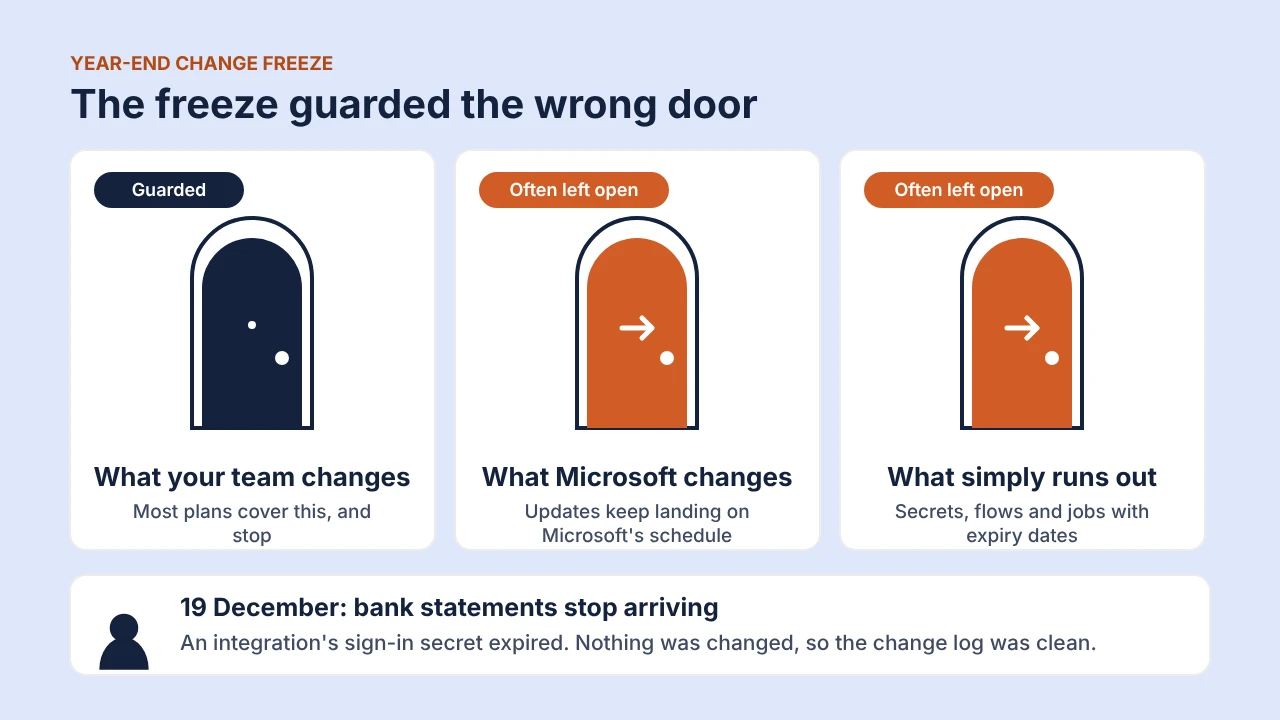
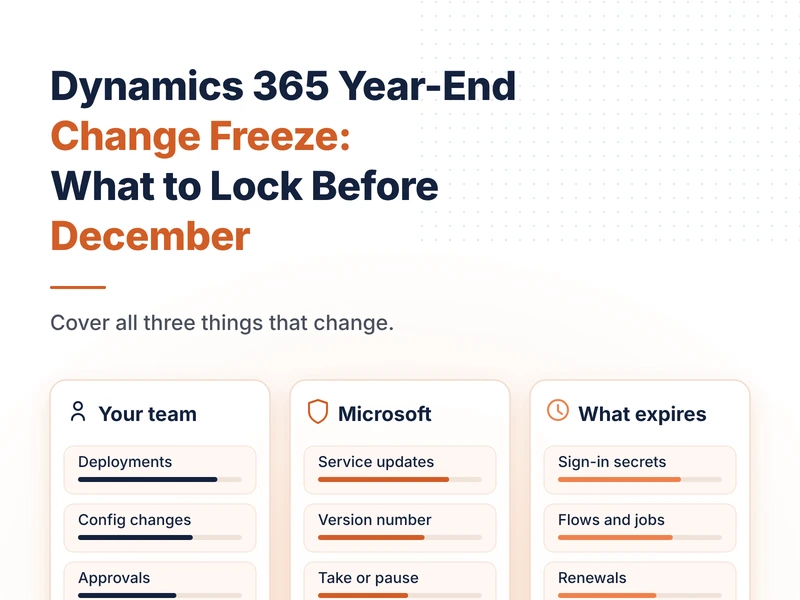
A year-end change freeze in Dynamics 365 is a window, usually from early December to mid-January, in which nothing changes in the live system without an emergency sign-off. It protects the close only if it covers three things: what your team changes, what Microsoft changes, and what simply runs out.
Most plans cover the first and stop. The other two are where December goes wrong.
Microsoft does not take December off
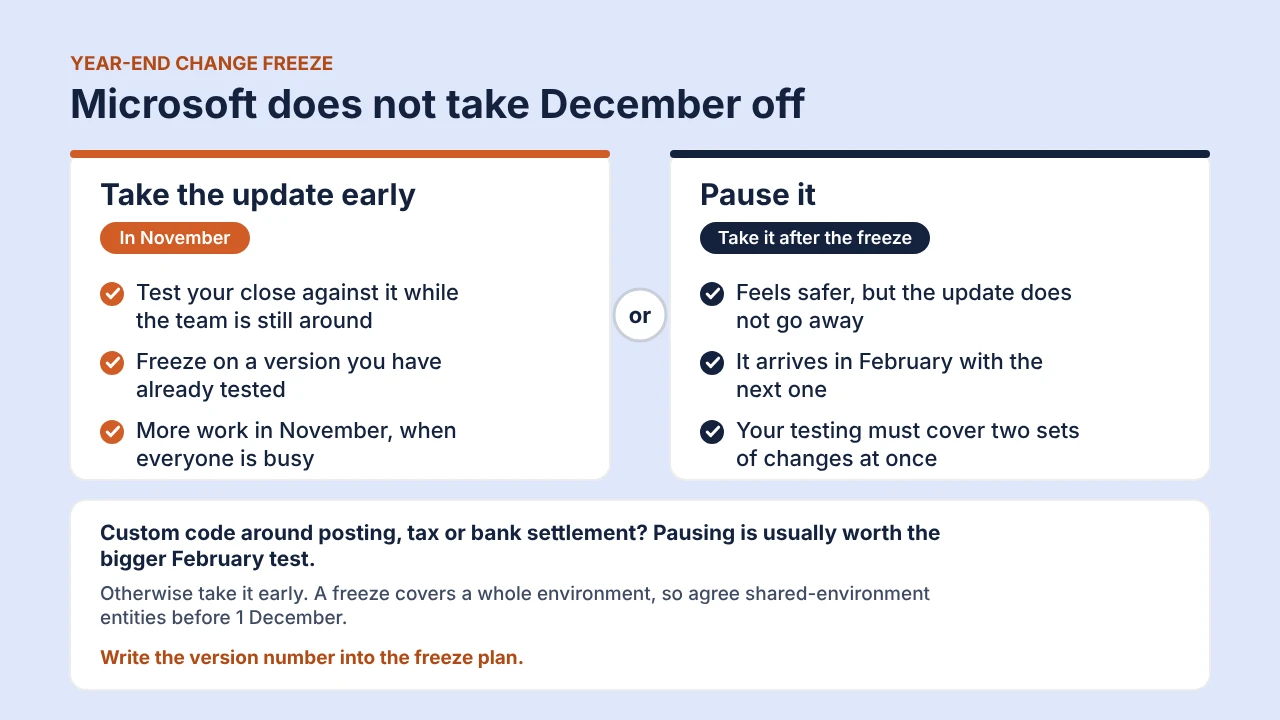
Your freeze is an internal agreement. Microsoft is not part of it. Finance and Operations, Business Central and the Power Platform all keep updating on their own schedules, and an update that lands on 20 December changes your system as surely as a deployment would.
So the real decision is a simple one. Either take the next update early, in November, and test your close against it while your team is still around. Or pause it and take it after the freeze.
Both have a cost. Pausing feels safer, but the skipped update does not go away. It arrives in February alongside the next one, and your testing has to cover two sets of changes at once. Taking it early means more work in November, when everyone is already busy preparing for the close.
If your close relies on custom code around posting, tax or bank settlement, pausing is usually worth the bigger February test. If it does not, take the update early and freeze on a version you have already tested.
Either way, write the version number into the freeze plan. If you cannot name the version you are protecting, you are not really protecting it.
One more thing to settle here. A freeze covers a whole environment, not a single company within it. If your Indian entities share an environment with your UAE and Singapore entities, a December freeze also freezes India, which closes its year on 31 March and may have plans for December. Agree that before 1 December, not on the 15th.
Set up January in November
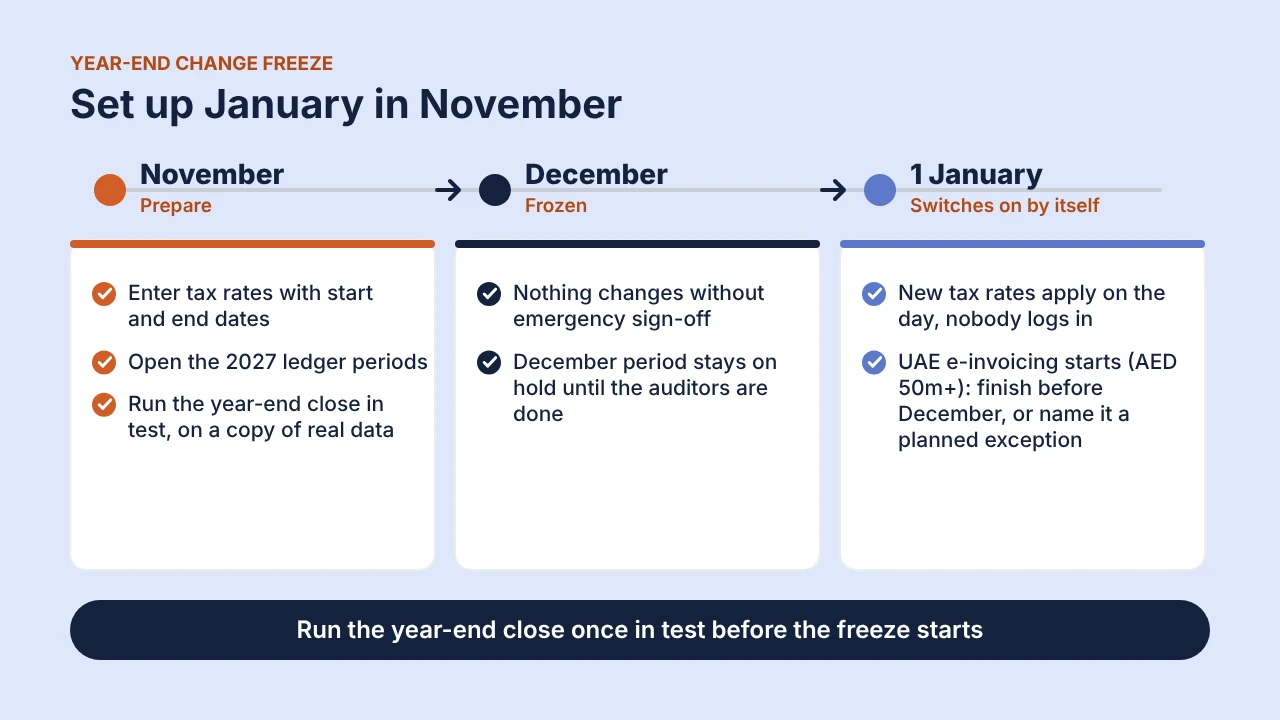
The best freezes have one habit in common: anything that has to change on 1 January is set up weeks earlier with a start date, so it switches on by itself. Nobody has to log in on New Year's Day.
Tax is the clearest example. Dynamics 365 lets every tax rate carry a start date and an end date. A rate that changes on 1 January can be entered in November and will apply on the day without anyone touching the system during the freeze.
The bigger date this year belongs to the UAE. Businesses there with revenue of AED 50 million or more must issue e-invoices from 1 January 2027, which lands right in the middle of most freeze windows. That leaves two honest choices: finish the connection and testing before December, or name it in the freeze plan as a planned exception, with its own sign-off and a way back if it fails.
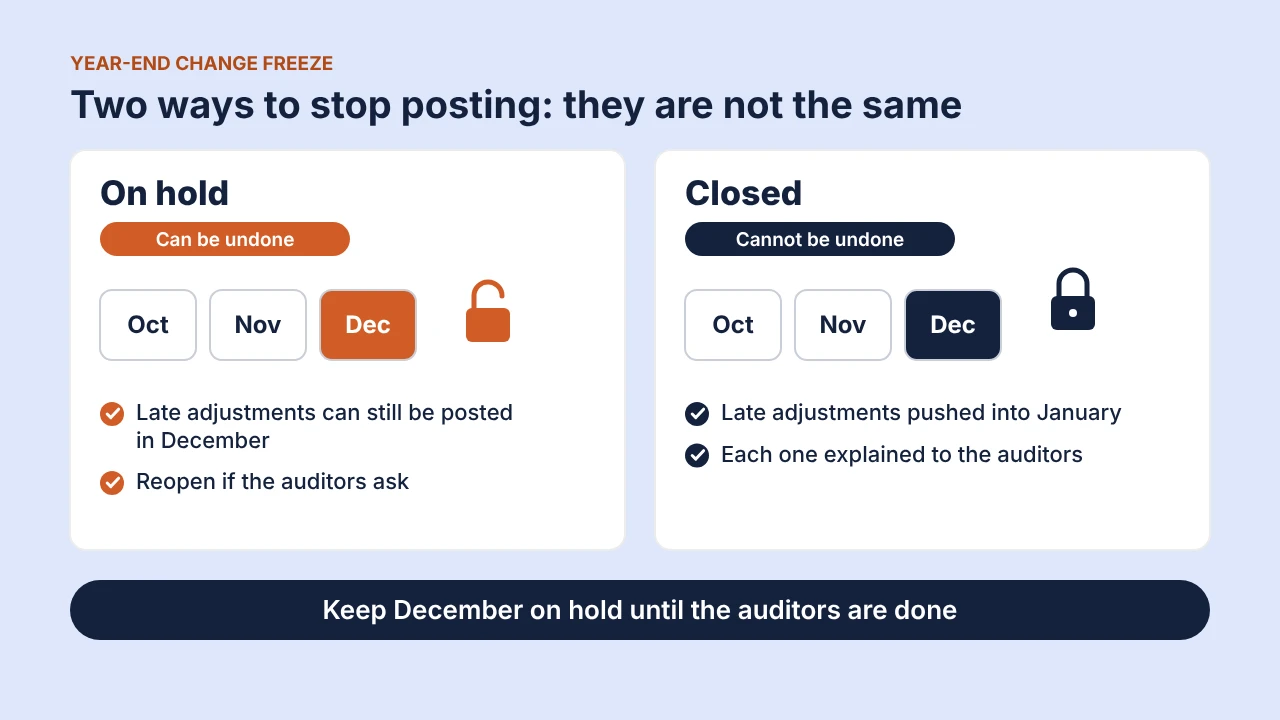
The ledger calendar needs the same care. Open the 2027 periods before December. Then agree who controls the December period, because Dynamics 365 offers two ways to stop posting and they are not the same. On hold can be undone. Closed cannot. A December period closed a week too early means every late adjustment has to be pushed into January and explained to the auditors. Keep December on hold until the auditors are done.
Finally, run the year-end close once in a test environment, on a copy of real data, before the freeze starts. Most groups run it more than once as late adjustments come in. Better to learn how a second run behaves in November than on 3 January.
What expires while everyone is away
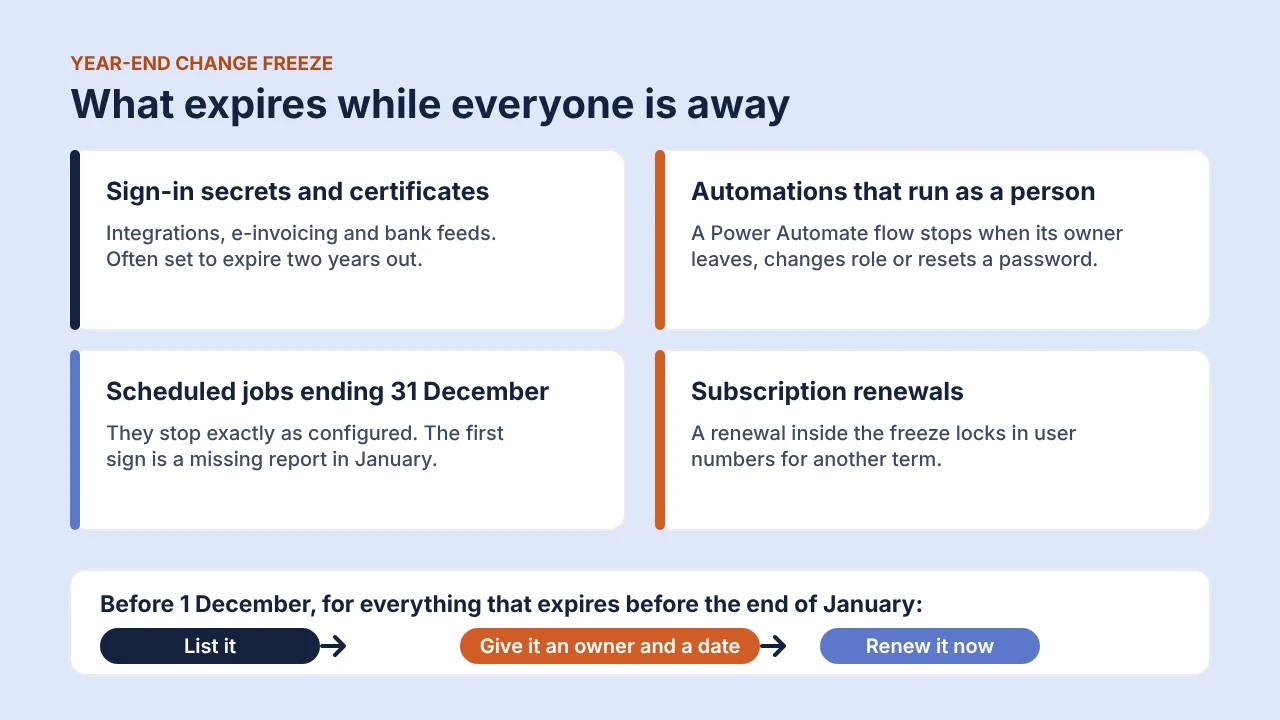
This is the door from the opening story, and the one most plans leave open. Nothing here is a change anyone makes, so it never appears on a change list. It just has a date, and the date does not care about the holidays.
The usual suspects are easy to name:
- Sign-in secrets and certificates that let integrations, e-invoicing and bank feeds talk to Dynamics 365. They are set up with an expiry date, and the date is often two years out.
- Automations that run as a person. A Power Automate flow built under an employee's account stops when that person leaves, changes role or resets their password.
- Scheduled jobs set to end on 31 December. They stop exactly as configured, and the first anyone hears of it is a missing report in January.
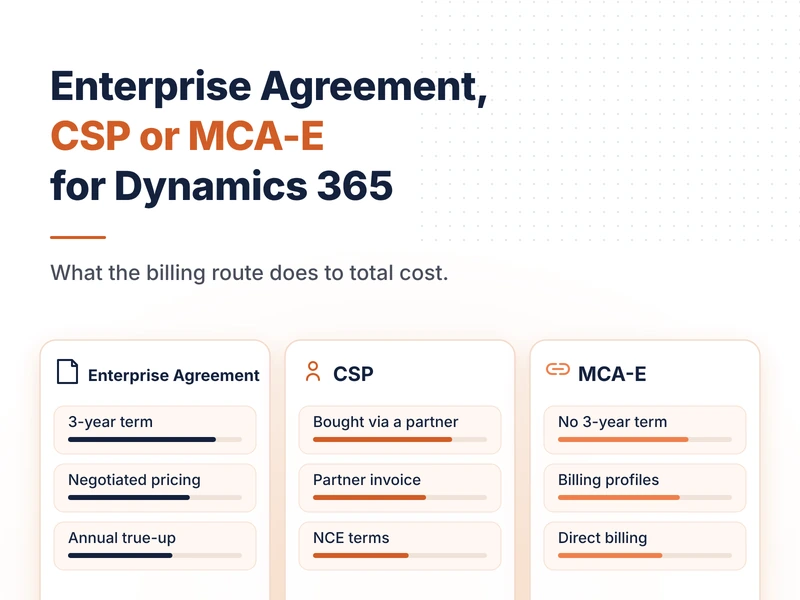
- Subscription renewals. A licence renewal that falls inside the freeze locks in user numbers for another term, which we explored in our comparison of EA, CSP and MCA-E.
The fix is unglamorous. Before 1 December, list everything that expires before the end of January, give each line an owner and a date, and renew it now, while the people who understand it are still at their desks. A list without owners is just a schedule of future incidents.
Leave one door open in your Dynamics 365 year-end change freeze
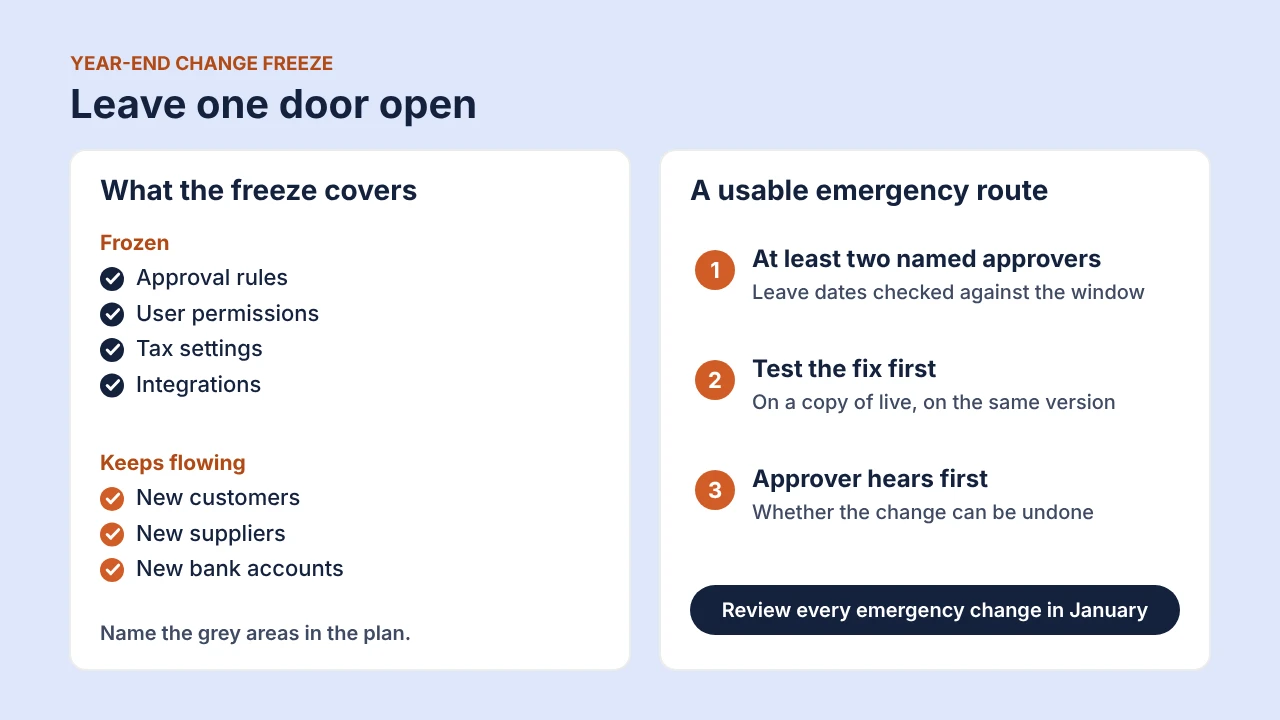
A freeze with no way out does not stop change. It pushes change out of sight, where nobody records it.
Start by deciding what the freeze does not cover. New customers, suppliers and bank accounts are day-to-day business and must keep flowing. Approval rules, user permissions, tax settings and integrations are frozen. Name the grey areas in the plan, because the person deciding at 6 pm on 23 December should not be interpreting a policy document.
Then make the emergency route something people can actually use. That means at least two named approvers, with their leave dates checked against the window. Every fix is tested first in a copy of the live system on the same version, which is why that version number matters. And the approver hears, before saying yes, whether the change can be undone.
Every emergency change gets reviewed in January. The ones that keep recurring belong on next year's November list.
Common failure modes
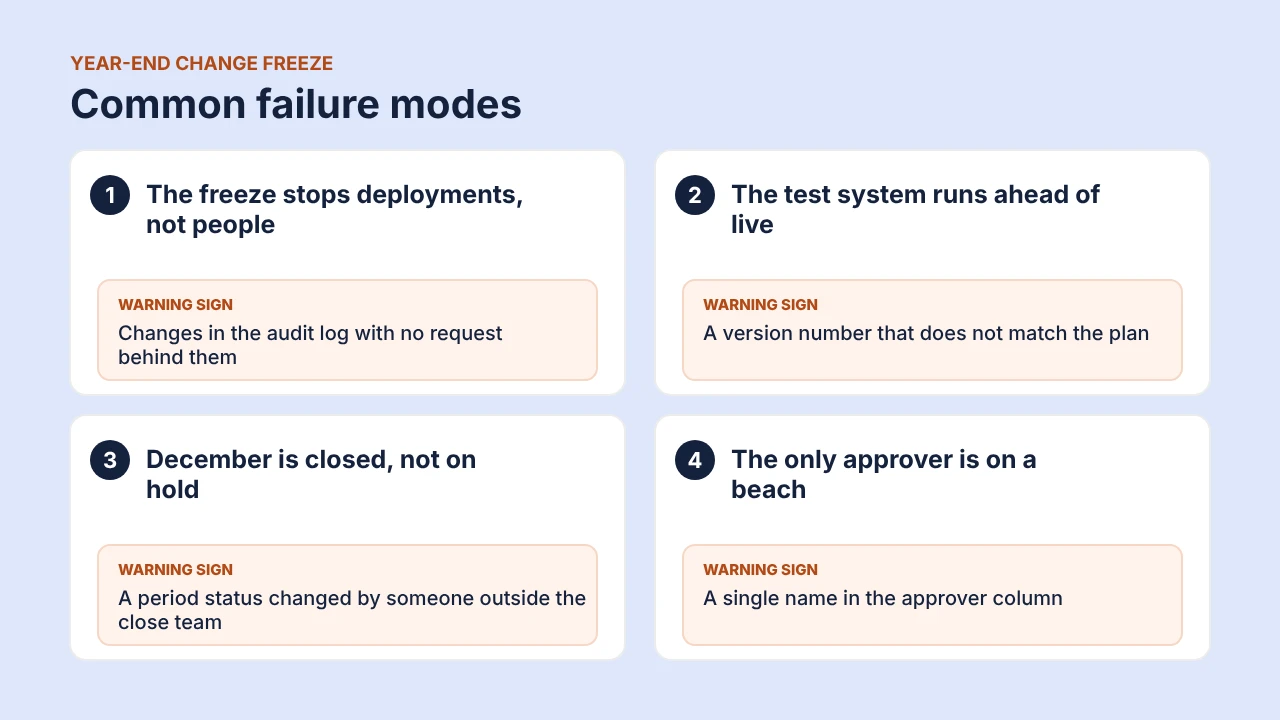
- The freeze stops deployments, not people. Releases are paused, but administrators still adjust workflows and permissions directly in the live system. The warning sign is changes in the audit log with no request behind them.
- The test system runs ahead of the live one. Microsoft often updates test environments first, so an emergency fix is tested on a different version from the one it goes into. The warning sign is a version number that does not match the plan.
- December is closed instead of put on hold. Late adjustments then have to be forced into January. The warning sign is a period status changed by someone outside the close team.
- The only approver is on a beach. The emergency route exists on paper and nobody can use it. The warning sign is a single name in the approver column.
None of these is a technology failure. Each starts as a gap in the plan that was there to be seen in November.
Conclusion
A good year-end freeze is mostly done before it starts. Decide on Microsoft's next update, set up every 1 January change with a start date, list and renew everything that expires, and make sure someone with authority is actually reachable over the break. Then December can be as quiet as it is meant to be.
Dynamics Monk works with Dynamics 365 teams across India, the UAE and Southeast Asia, and this is the list worth working through before the first of December.